Flow gives you powerful ways to organize your tasks using hierarchy (parent-child nesting) and contexts (tags for when and how).
Task Hierarchy
Your main organizational structure is the parent-child relationship between tasks. Any task can have subtasks, and top-level tasks with children naturally become your “projects.”
How It Works
Launch Product V2              <- top-level task (your "project")
  ├── Finalize designs
  │     ├── Mobile mockups
  │     └── Desktop mockups
  ├── Backend API
  └── Launch prep
- Top-level tasks are your projects - the commitments you’re managing
- Nested tasks are subtasks and implementation details
- Depth is unlimited - break things down as much as you need
Creating Structure
There are two ways to organize tasks into a hierarchy:
- In the Outliner: Use Tab to indent a task under the one above it, or ShiftTab to outdent
- With Quick Add: Type
/Parent Nameto file a task under an existing parent
Start Simple
Don’t worry about structure upfront. Capture tasks first, then organize them into groups as patterns emerge. A “project” is just a task that grew subtasks.
When You Complete or Cancel a Project
When you mark a parent task as complete or cancelled, all its active subtasks automatically follow. This keeps your task list clean — when you’re done with a project, everything under it closes too.
What happens:
- Active subtasks (not yet started or in progress) are automatically completed/cancelled along with the parent
- Subtasks you already completed stay completed — your accomplishments are preserved
- This works recursively through multiple levels of nesting
Why this matters:
You don’t have to manually clean up dozens of subtasks when a project wraps up. Just complete the parent task and everything resolves naturally.
Contexts (@tags)
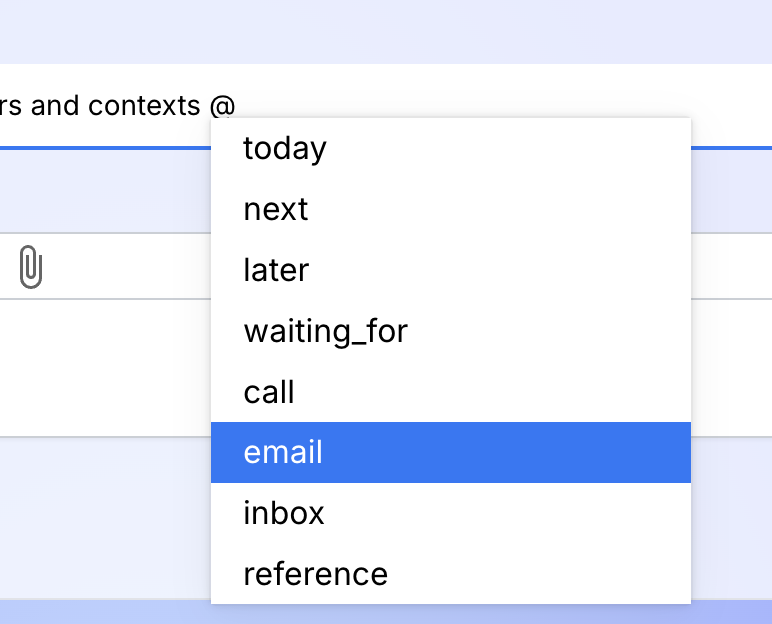
While hierarchy organizes what you’re trying to achieve, contexts help you organize tasks by when and how you can complete them.
When to Use Contexts
Use contexts to group tasks that you can tackle:
- In the same location
- Using the same tools
- At the same energy level
- With specific people
- In specific modes of work
Context Examples
@call- Tasks requiring phone calls@john- Things to discuss with John@quickwins- Tasks you can do in under 5 minutes
Power of Combined Organization
A single task can have hierarchy and contexts:
Call contractor about kitchen tiles @call @contractor
  └── (nested under "Home Renovation" parent task)
This tells you:
- What it’s for (kitchen renovation - via parent task)
- How to do it (make a call)
- Who it involves (contractor)
Making the Most of Organization
- Use hierarchy to track progress toward specific goals
- Use contexts (@) to batch similar tasks together
- Use domain tags (#work, personal) to slice across your hierarchy
Quick Reference
Hierarchy
/Parent Name- Assign a parent task in quick add- Tab - Indent (make subtask) in outliner
- ShiftTab - Outdent in outliner
Contexts
@context- Add any context tag@call- Phone tasks (Cmd+4(Mac) /Ctrl+4(Windows/Linux))@email- Email tasks (Cmd+5(Mac) /Ctrl+5(Windows/Linux))- Type
@for autocomplete suggestions
Markers (Section Dividers)
While hierarchy organizes what you’re working toward and contexts group tasks by how you’ll do them, markers section your day by time, energy, or commitment level.
A marker is a visual line across your task list — not a task you complete, just structure that tells you where one section ends and another begins. The most common use: drawing a line between “I’m committing to these” and “I’ll get to these if time allows.”
See Markers - Section Dividers for the full guide on how markers can transform your daily planning.
Pro Tip
Start simple! Begin with just a few top-level tasks as projects and a couple of context tags. Add more structure as you discover what organizational patterns work best for your workflow.