Task Actions - Automatic Workflow Automation
What are Task Actions?
Task Actions automatically set up your work environment when you start working on a task. Include URLs or keywords in your task title or notes, and MakeTimeFlow detects them and launches everything you need when you begin.
By default, actions run automatically when you start a task. If a task has more than 5 actions, you’ll be asked to confirm before they launch — preventing a flood of tabs when you didn’t expect it.
What Task Actions do for you:
- Open relevant URLs in your browser
- Launch communication tools you’ve configured
- Navigate to rituals (shutdown, weekly planning, begin well)
- Return you to where you were when you stop or complete the task
How Actions Work
Lifecycle Hooks
Task Actions operate at three points in a task’s lifecycle:
| Lifecycle | When it fires | What it does |
|---|---|---|
| On Start | You start working on the task | Opens URLs, launches tools |
| On Stop | You stop the timer | Navigates you back (e.g., to where you came from) |
| On Done | You complete the task | Navigates you back (falls back to On Stop if not set) |
Most actions you create through keywords and URLs are On Start actions. On Stop and On Done actions are used by features like Comms Scan/Process to return you to where you were when the timer ends.
Detection at Save Time
Actions are detected the moment you save a task — not when you start it. MakeTimeFlow scans your task title and notes for URLs, communication keywords, and ritual references, then stores the detected actions. This means:
- The lightning bolt indicator appears immediately after saving
- You can see exactly what will happen before you start
- Detection is fast and consistent
Types of Actions
1. URL Actions
Any URL in your task title or notes will automatically open when you start.
Supported URL schemes:
- Web URLs:
http://andhttps:// - Note-taking apps:
obsidian://,notion://,roam://,bear:// - Task managers:
things://,omnifocus:// - Communication:
slack://,teams://,zoom://,meet:// - Development:
vscode:// - Media:
spotify://,music:// - And more! Any custom URL scheme your apps support
Examples:
Review PR https://github.com/company/repo/pull/123
Design mockup https://figma.com/file/abc123
Open notes obsidian://vault/project-notes
Multiple URLs all open at once:
Review https://github.com/repo1/pull/1 and https://github.com/repo2/pull/2
2. Communication Actions
Open your communication tools with simple keywords. First, configure your tools on the Communications page (see Communication Tools).
Generic “comms” action — Opens ALL configured communication tools:
Check comms
Comms
Do comms
Specific tool actions — Open just one tool:
Do Gmail
Check Slack
Open Basecamp
Do Teams
The tool name is matched against your configured communication tools (case-insensitive). If you have a tool called “Gmail” configured with its URL, writing “do Gmail” in a task will open that URL when you start.
3. Ritual Actions
Jump directly into your rituals with keywords:
Do shutdown        --> Shutdown ritual
Shutdown           --> Shutdown ritual

Do wrap            --> Weekly planning ritual
Wrap               --> Weekly planning ritual
Weekly reflection  --> Weekly planning ritual
Weekly planning    --> Weekly planning ritual

Do begin           --> Begin well ritual
Begin              --> Begin well ritual
Begin well         --> Begin well ritual
Example tasks:
End of day - do shutdown
Weekly review - wrap
Morning routine - begin well
Visual Indicators
Lightning Bolt Icon
Tasks with actions show a lightning bolt on their Start button and next to the task name:

This tells you the task will do something automatically when you start it. Hover over the bolt to see a tooltip listing exactly which actions will run.
In the Active Timer
When you’re working on a task with actions, the lightning bolt appears next to the task name:
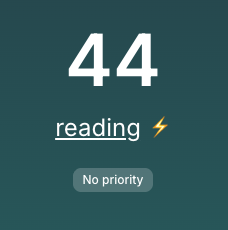
Click the bolt to re-run the actions if you need to open those URLs again.
Controlling When Actions Run
User Preference
You can control how Task Actions behave globally in your preferences. There are three modes:
| Mode | Behavior |
|---|---|
| Automatic (default) | Actions run automatically if 5 or fewer. If more than 5, you’re asked to confirm first. |
| Always Ask | You always see a confirmation dialog before actions run, regardless of how many. |
| Never | Actions never run automatically. You can still click the lightning bolt to run them manually. |
Actions Run Once Per Timer
Actions only execute once per timer start. If you:
- Pause and resume: actions don’t re-run
- Return to the timer page: actions don’t re-run
- Refresh the page: actions don’t re-run
Click the lightning bolt in the active timer to manually re-run actions.
Using Task Actions
Basic Workflow
-
Create a task with a URL or keyword:
Review PR https://github.com/company/repo/pull/123 -
Notice the lightning bolt on the Start button
-
Start the task — the URL opens automatically
-
Focus on your work — your environment is ready
-
Stop or complete — you’re returned to where you were (if the task has On Stop/On Done actions)
Combining Multiple Action Types
Morning standup - check comms and https://calendar.google.com
This will:
- Open all your communication tools
- Open Google Calendar
Using the Notes Field
Actions work in notes too — you don’t have to cram everything into the title.
Title: Review design feedback
Notes:
Check the Figma file: https://figma.com/file/abc123
Also review Slack thread: https://workspace.slack.com/archives/channel/p123456
Both URLs open when you start.
Security and Privacy
Safe by Design
MakeTimeFlow blocks dangerous URL schemes:
javascript:URLs (XSS attacks)data:URLs (embedded code)file:URLs (local file access)vbscript:URLs (script execution)
Internal navigation actions (like ritual shortcuts) are validated to ensure they only navigate within MakeTimeFlow — they cannot redirect you to external sites.
Your Privacy
- Actions run locally in your browser
- No data sent to external servers beyond the URLs you chose to open
- All actions are visible in your task title and notes
- You control what opens and when
Custom URL Schemes
If you use an app scheme we don’t specifically recognize (e.g., myapp://action), it will still work. Your browser may prompt you to confirm opening the app.
Platform Support
Web Browser:
- URLs open in new tabs
- Custom schemes prompt “Open in app?”
- Works in all modern browsers
- Popup blockers may need to allowlist MakeTimeFlow
Desktop App (Electron):
- URLs open in your default browser
- Custom schemes launch apps directly
- Smoother integration with native apps
Tips and Best Practices
Create Reusable Task Patterns
Daily standup:
Title: Daily standup
Notes:
check comms
https://calendar.google.com
https://notion.so/standup-notes
Use with Recurring Tasks
Add actions to recurring tasks for automatic setup every time:
Monday planning - https://notion.so/week https://calendar.google.com
Friday wrap-up - check comms and do wrap
Project Context Bundles
Keep all project links together in one task:
[Project Alpha] Work session
https://jira.com/board/alpha
https://github.com/company/alpha
https://figma.com/file/alpha-designs
check Slack
Keep It Focused
- Only include URLs you actually need for the task
- If you have more than 5 actions, consider splitting into smaller tasks
- Use communication tool groups to keep “check comms” manageable
Troubleshooting
Actions Not Running
- Does your task show a lightning bolt? If not, the action pattern wasn’t detected. Check spelling and URL format.
- Did actions already run? Actions only run once per timer. Click the lightning bolt in the active timer to re-run.
- Is the URL format correct? URLs need
://(e.g.,https://,obsidian://). - Check your preference. If set to “Never”, actions won’t auto-run. Click the lightning bolt manually or change your preference.
URL Not Opening
- Popup blocker: Look for the popup blocker icon in your address bar and allow popups from MakeTimeFlow
- App not installed: Custom schemes like
obsidian://require the app to be installed - Custom scheme prompt: Your browser may ask “Open in app?” — click Open to allow
Communication Tool Not Launching
- Check that you’ve configured your tools on the Communications page
- Verify the tool has a URL configured
- Make sure the tool name in your task matches (case-insensitive)
- Try “check comms” to launch all tools and verify the URLs work
Related Features
- Communication Tools — Configure your tools and use Scan/Process mode
- Rituals — Shutdown, wrap, begin well routines
- Keyboard Shortcuts — All shortcuts
- Focus Mode — Deep work without distractions