Task filters are available in the Tasks view, and also through Keyboard Shortcuts
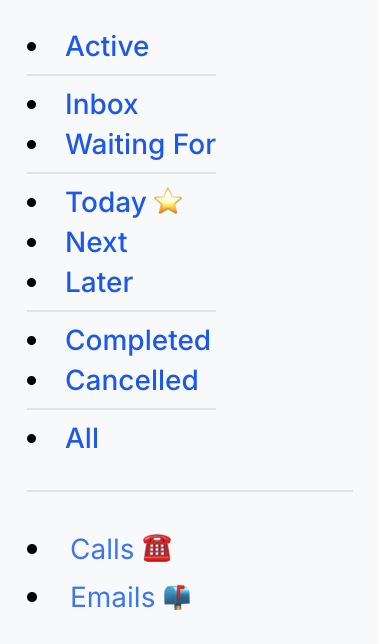
Active
The “Active” filter helps you focus on what matters right now. It shows:
- Tasks scheduled for this week
- Tasks with deadlines this week
- Tasks in your Today, Next, or Inbox buckets
Performance Boost
The updated focused Active view loads significantly faster, especially helpful for power users tracking hundreds or thousands of tasks!
All
The “All” filter will show you all the tasks which are not yet complete or cancelled - primarily including all your Active tasks and all your Later tasks.
Completed Tasks
You can view your completed tasks in three ways:
- Complete Filter: See all completed tasks ever using the “Completed” filter in Tasks view
- Today’s Wins: Quick-view today’s completed tasks via the checkmark in Focus view
- Tada List: Celebrate your progress with completed tasks grouped by timeframe (today, yesterday, this week, this month)
Managing Cancelled Tasks
We use a “soft delete” approach for cancelled tasks - they’re out of sight but not gone forever.
Why Cancel Instead of Delete?
Ever kept a task around “just in case”? Cancelling lets you get it off your plate while keeping it searchable. It’s like moving something to cold storage instead of throwing it away!
Permanent Deletion
- Click the “x” on any cancelled task to permanently delete it
- When using “edit as text” mode:
- Deleting tasks in text mode permanently removes them
Quick refresher on completed and cancelled tasks is "Edit as Text"
- Cancelled tasks appear as
- [-] cancelled task- Completed tasks appear as
- [x] completed task