Update: A Menu-Bar Timer and a Faster Start
Released: Tuesday, June 16, 2026
What’s New
This release lands across both the web app and the desktop app at once, around a single idea: the fewer steps between you and your next focused block, the more time you actually make. The desktop app now lives quietly in your menu bar — start and steer a flow session without ever opening the full window. The web app gets faster ways to capture what’s already in your head (or in a chat with your AI), to find anything in a keystroke, and to learn the workflow at your own pace. And the path to getting the desktop app onto your machine is dramatically smoother.
A Flow Timer Right in Your Menu Bar (Desktop, Mac)
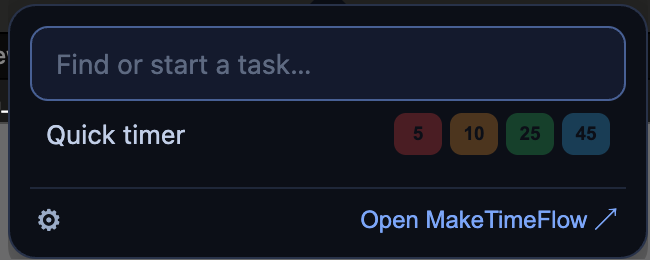
The desktop app’s menu-bar icon used to be a plain menu. Now a single click opens a small, beautiful popover — a zen input box with quiet powers — that puts your flow session one glance and one click away.
When a timer is running, the popover is your countdown hero: see exactly how much time is left and control the session without breaking stride. When you’re between sessions, you’ll see your recent projects as a one-click grid — start a flow timer on the right work instantly, the way the flow timebox always intended. And whenever you need something that isn’t on screen, just start typing to find any task, then start it — no need to open the main window at all.
The menu-bar title itself is smarter, too. While you’re in flow, the icon shows a draining countdown ring and a clean, time-first readout of how long is left; if you run past your planned time, it shows the overage with a clear ”+” so you always know where you stand at a glance. It’s calm, it’s always there, and it keeps you in flow instead of pulling you out of it.
This menu-bar window is available on Mac in this release; Windows and Linux keep today’s menu behavior for now.
Paste a List, Get a Task Tree
The task outliner now understands Markdown. Paste a Markdown list — from a conversation with Claude or ChatGPT, from a doc, from notes anywhere — and MakeTimeFlow turns it into a proper, structured task outline: nesting becomes subtasks, and checkboxes become real, completable tasks. The reverse works too: copy tasks out as a Markdown checklist to drop into a doc, a message, or a teammate’s tool.
If you’ve ever asked an AI to break a project into steps and then re-typed every line by hand, that round-trip is gone. The list you already have becomes the plan you can actually work — in seconds, with the hierarchy intact.
Find Anything from the Sidebar — Search ⌘K
MakeTimeFlow has long had a powerful command palette that searches your tasks and jumps you anywhere, but it lived behind a shortcut many people never discovered. Now there’s a clear “Search ⌘K” button at the top of the sidebar — click it (or press the shortcut) to open the palette and find any task or place in the app in a keystroke. We’ve also refreshed the little keyboard hints on your nav items so they read like real keys, making the shortcuts easier to learn as you go.
A Guided Getting Started Video, Right When You Need It
Landing in a new workflow and wondering “okay… now what?” is a real moment — so we’ve made the answer easy to reach. A friendly ~12-minute Getting Started walkthrough with Narath is now offered right in your Focus screen, at a calm moment when you actually have time to watch (never mid-timer). Not in the mood? “Watch later” tucks it away. And it’s always rewatchable from your Learn & Help card whenever you want a refresher. Your Flow Coach can even point you to the exact chapter that fits what you’re trying to do — like connecting your calendar or setting up rituals — and drop you straight into that moment of the video.
Getting the Desktop App, Without Losing Your Place
Installing the desktop app used to mean a frustrating round-trip — a button that replaced your browser tab, a second platform pick, then hunting for “Open in App” after install. We’ve smoothed the whole thing out. The download button now knows your operating system (“Download for Mac,” “Windows,” or “Linux”) and opens in a new tab, so the app you’re using never disappears. When you come back after installing, a “Launch” button is already waiting — no hunting. And once you’ve connected the desktop app, MakeTimeFlow stops nagging you to download it. (The downloads page also got a clean Zen Elite refresh.)
Smarter Desktop Notifications and a Refreshed Sign-In
On the desktop app, notifications are noticeably calmer. The gentle “time to be intentional” nudge no longer stacks up and disappears on its own the moment you start using the app — so you’re never staring at a pile of reminders. Timer-expiry notifications carry flow-aware actions (Show, Stop, Done, Extend) so you can respond in one click. The desktop login and sign-up screens have been redesigned to match the rest of the app, and you can now jump straight to any web setting from desktop settings. Plus a handful of reliability fixes: clicking the dock icon reliably brings the window back, Quit always quits, and quick-add works even when you’re signed out.
A Little Celebration for Your Daily Highlight
Finishing the one thing that matters most should feel good. Now, when you complete your daily highlight in Focus mode, you’ll get a brief gold-star burst — a small, joyful “you did it.” (It respects reduced-motion settings, and it’s reserved for the highlight, so it stays special.)
Polish and Fixes
A few quieter improvements you’ll appreciate:
- Active timer shows overtime with a clear ”+” in the countdown.
- Outliner: typing
---now creates a section marker (not a stray divider line), and “Show in Outline” now selects the task it jumps you to. - Smoother lists: moving a subtask between buckets in the list and table views now behaves correctly, and arrow-key navigation no longer jumps backward at the last task.
How This Helps You Level Up
Every change here removes a small tax on starting. The menu-bar timer makes beginning a focused block almost frictionless. Markdown paste turns thinking — yours or your AI’s — into an actionable plan without re-typing. Search puts your whole workspace a keystroke away. The Getting Started video meets you when you’re ready to learn, and the easier download means the desktop experience is no longer a chore to set up. Less friction to start, less noise while you work, and a moment of celebration when you finish what matters — all in service of the same goal: more of your attention spent on the work that moves your life forward.