Tag Buckets: Group the Work That Cuts Across Your Days
It’s Tuesday afternoon. You look at @today and see: reply to Rob, call the plumber, finish the proposal, reply to Heli, email the accountant.
Three of those are email. They have nothing to do with each other — different people, different projects, different stakes. But you’d do all three in one sitting if you could see them together, because that’s how email works. You get into it once and clear the pile.
Instead they’re scattered through your day, each one a small context switch.
The problem isn’t your list. It’s that your tasks are organised by when — today, next, later — and some work isn’t a when. It’s a kind.
You already have tags
Here’s the thing: you may already be doing this without knowing it had a name.
Anything you type in a task title starting with # or @ is a tag.
Reply to Rob #email
Call the plumber #calls
Chase the invoice @waiting_for
That’s it. No setup, no menu, nothing to enable. You type the word, and it’s a tag.
A few things worth knowing:
- Case doesn’t matter.
#Emailat the start of a sentence and#emailin the middle are the same tag. - It matches whole words.
#emailwon’t pick up#emailsor#email-drafts. - To remove a tag, edit the title and delete the word. It’s just text.
@waiting_forwas always a tagIf you’ve used the waiting-for workflow, you’ve been tagging all along —
@waiting_forworks exactly this way, and always has. See Closing the Loop - From Done to Delivered.
What a tag bucket is
A tag bucket is a shortcut to one tag: somewhere to drop things you’ll do together, and a door to everything carrying it.
It lives in the row of small cards along the bottom of Focus, just above @next, @later, Done and Delete:
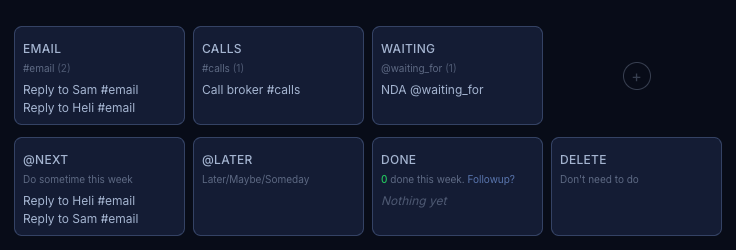
The card shows the tag, how many tasks carry it, and the two most recent — a peek, not a list.
Start with one
Click the + at the right of the row, type
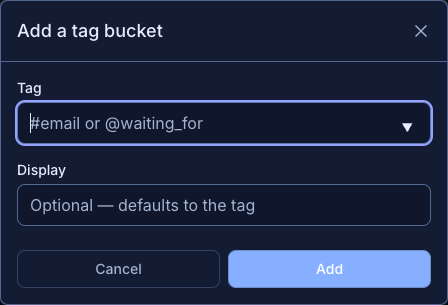
You can keep four. That’s how many fit the row — when it’s full, remove one to make space.
Dropping a task in
Drag a task from your list onto a tag bucket. Two things happen at once:
- The task gets the tag.
- The task moves to
@next.
The second one is the point. You’re not just labelling the task — you’re getting it off today’s plate without losing it. It’s out of the way, and it’s in the pile you’ll work through when you sit down to do email.
Before — “Reply to Rob” is sitting in @today:
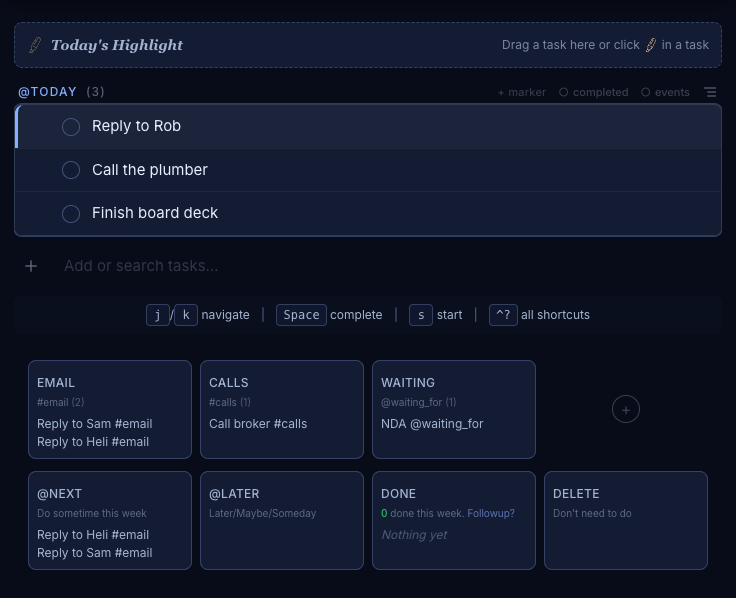
After the drop — it’s gained #email, it’s in the Email card, and @today is one shorter:

If you’d rather tag something without moving it, just type the tag into the title.
Seeing everything with a tag
Click a card and you’ll get the full list — every task carrying that tag, whatever bucket it’s in.
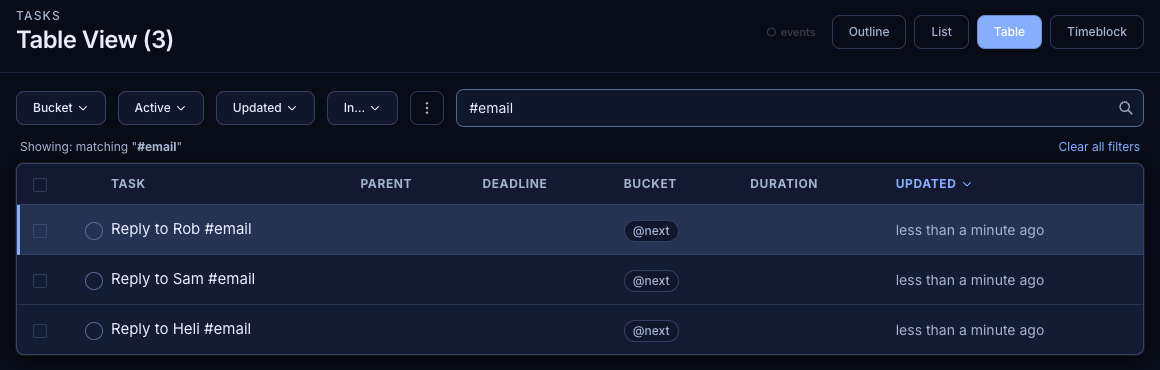
You can do the same thing from the search box: type #email and you’ll get the same set. The card and the search box agree, because they’re asking the same question.
Starting a session on the whole pile
Hover a card and the peek gives way to three buttons: ▶ starts 25 minutes, and 5 and 45 sit beside it.
Press one and you land in flow with the outliner showing just that work — every task carrying the tag, ready to be broken down, reordered, or worked straight through. You don’t pick a task first. The pile is the thing you’re sitting down to.
Why three: 25 is the ordinary sitting, 5 is “I have a gap before the next call”, and 45 is the one you can only want of a pile — clear the backlog.
If you already planned the time, Start joins it
When a block for that tag is covering right now, pressing Start opens that session rather than laying a second one over it — so the 45 minutes you set aside stays 45 minutes even if you press 5. A block that has already run out doesn’t count: that was a finished sitting, not one to resume.
Putting a tag on your calendar
Drag the card itself onto the calendar and you get a block — Work on #email — sitting at the slot you dropped it, exactly like dragging a project across.
That’s the other half of batching. Seeing your email tasks together tells you there’s a pile; putting the pile on Thursday at 2pm is what makes it happen.
Drop it more than once if that’s your day. Email before the standup and email after lunch is an ordinary Tuesday, not an edge case — each drop makes its own block, where you dropped it.
Or type it, which is the version that repeats
work on #emailin any quick-add does the same thing, and because a repeating task is only its text,work on #emailset to repeat weekly gives you an email session every week without setting one up again. See Task Text Format.
Removing a bucket
Hover a card and click the ✕.
This removes the card, not the tags. Your tasks keep their #email — nothing is deleted, nothing moves. You’ve closed a window, not thrown anything away. Add the bucket back tomorrow and everything is still there.
Tags and markers do different jobs
If you use Markers - Section Dividers, the two might sound similar. They’re not, and they work well together:
- A marker divides one list. It draws a line across @today: above is a win, below is a bonus.
- A tag cuts across lists.
#emaildoesn’t care which bucket a task is in — it gathers the same kind of work from everywhere.
One is about this list, today. The other is about this kind of work, anywhere. Most people end up using both.
When to reach for a tag bucket
Tags earn their keep when the work is defined by kind, not by project and not by day:
#email,#calls,#errands— things you batch because switching in and out is the expensive part#tonight,#weekend— things gated by where you’ll be, not by when they’re due@waiting_for— the one you already have
If the work really belongs together as a piece of a bigger thing, that’s a project, not a tag. See Tasks, Projects, Folders, and Info.
Related
- Task Trust System — how @today, @next and @later work
- Markers - Section Dividers — dividing a single list
- Closing the Loop - From Done to Delivered — the
@waiting_forworkflow - Finding Tasks — searching and filtering
- Task Text Format —
work on #email, and everything else you can type into a title